Bookmark New Tab
Replace your new-tab page with a searchable gallery. Browse folders, switch between cards and a list, and choose whether the gallery takes focus.
Set up New Tab Bookmark
For Chrome and Firefox
Open a gallery in every new tab or bring it up on the page you’re already on. Find saved links by title or URL and open them with the keyboard.
Explore the extensions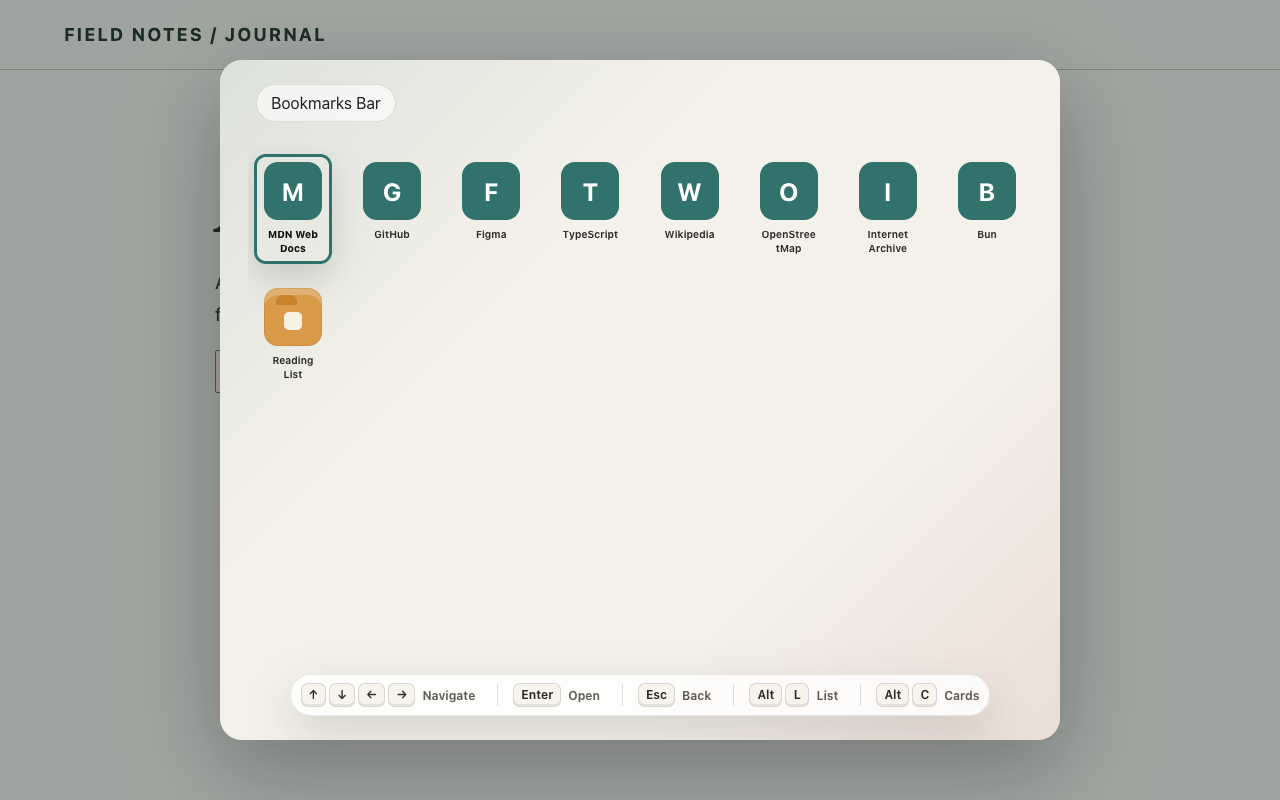
The extensions
Use either extension on its own or install both. Each reads the bookmarks already saved in your browser.
Replace your new-tab page with a searchable gallery. Browse folders, switch between cards and a list, and choose whether the gallery takes focus.
Set up New TabOpen the gallery over the current page with a shortcut. Use the arrow keys to move, Enter to open a bookmark, and Escape to return to the page.
Set up EverywhereGetting started
Run the corresponding command from the Bookmark repository.
./extensions/build-extensions.sh newtab./extensions/build-extensions.sh overlayBuilds are in dist/extensions/. Pick the folder for your extension and browser.
In Chrome, open chrome://extensions, enable Developer mode, and choose Load unpacked.
In Firefox, open about:debugging#/runtime/this-firefox, choose Load Temporary Add-on, and select the build’s manifest.json.
Optional account
To sync, create an account and sign in from the Bookmark Everywhere toolbar popup. Both galleries work with local bookmarks without an account.